LAUNCH & LEARN · OCTOBER 14, 2026
Connect your AI to the work.
Connect Muse to your LaunchBox community, confirm its access, and try one useful task. Follow along during the call or work through this guide afterward.
Wednesday, October 14 · 1:00–2:00 PM Central
Core walkthrough in the first 30 minutes · Optional practice and Q&A afterward
One connection. One useful result.
MCP is a standard way for an AI assistant to request tools and information from another app. Here, it connects Muse to LaunchBox so your assistant can work with the community you choose and the access you approve.
Before you start
Have Muse open and sign in with the LaunchBox account that owns your community. Member or admin access alone does not qualify for this connection. Choose a test community for today’s practice.
Following the demonstration is useful even if you do not have an eligible account yet. This guide follows the verified Muse setup; other assistants have their own ChatGPT and Claude guides, and availability can vary.
01 · WATCH THE WALKTHROUGH
See the connection from start to finish.
This is the existing connection walkthrough, recorded and checked October 12. You can use it before, during or after the session.
02 · FOLLOW ALONG
Connect, then check where you landed.
Ask Muse to connect
Paste this request into your Muse chat.
Connect to LaunchBox at https://www.launchbox.space/api/mcp
If Muse asks for the server address separately, copy it here:
https://www.launchbox.space/api/mcpOpen the connection and sign in
Choose Connect on Muse’s Launchbox connector card. Review its notice and choose Connect again. On the LaunchBox approval page, sign in if asked. Completing sign-in does not approve the connection.
Choose your community and review access
If asked for a purpose, choose Manage a community I own. Select your test community and read the entire permission list before choosing Allow connection. Leave optional access off unless you need it for your chosen task.
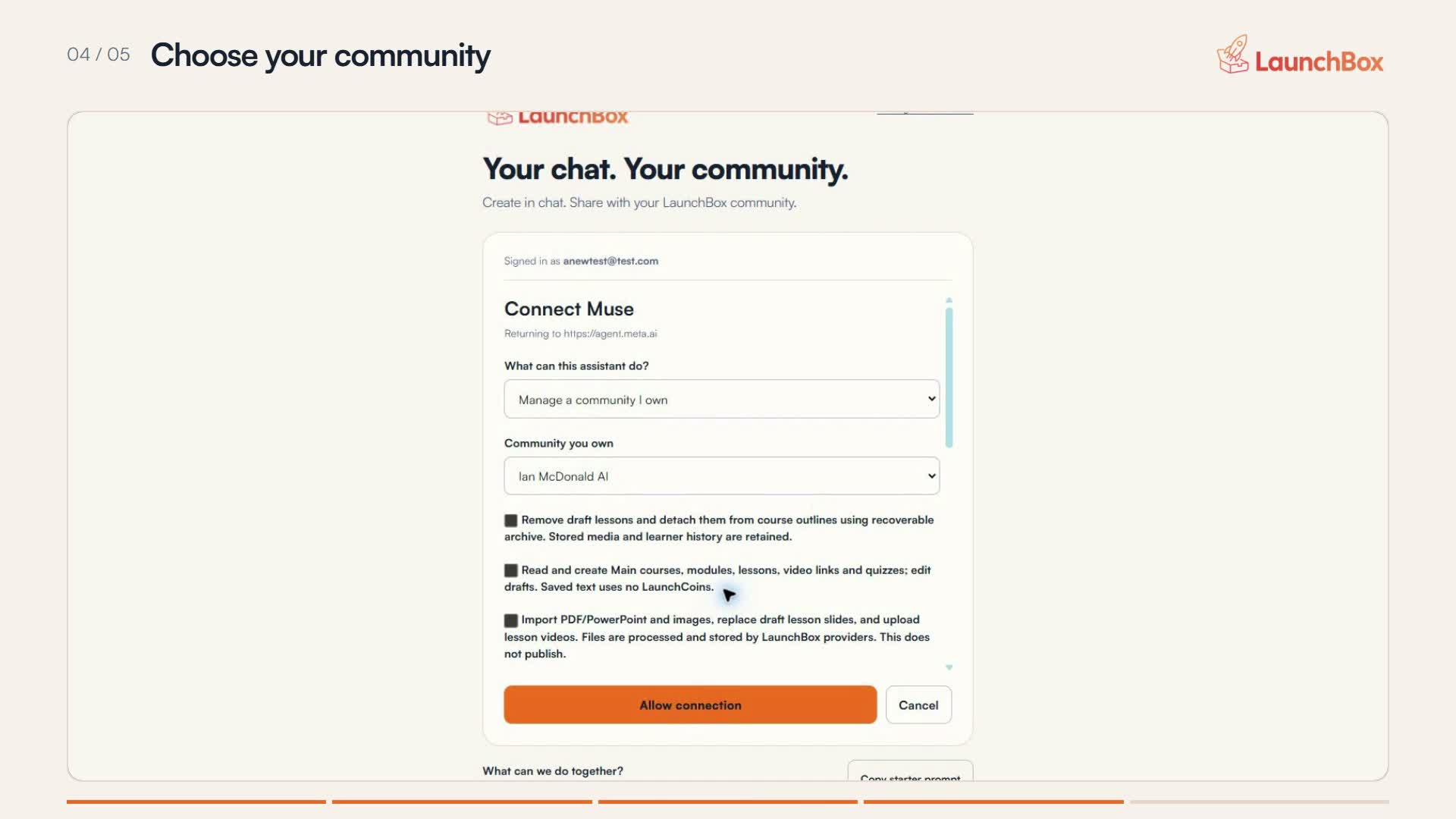
A frame from the demo walkthrough. Select your own test community and inspect the full permission list. Open the image to enlarge it. The standard posting permission can allow both saving private drafts and publishing posts. Leaving optional checkboxes off does not necessarily make the connection read-only. Cancel if the requested access is more than you intend to grant.
Verify the destination and permissions
Back in Muse, ask it to check the connected community. Open the returned link and compare the community with your selection. Compare its explanation of access with the permission screen you approved.
Use LaunchBox to check which community you are connected to. Tell me its name and link, and explain the permissions available through this connection. Do not create, change, publish, schedule, or send anything.
If the destination is wrong or access is unclear, stop here. Use AI connections to review or disconnect it before reconnecting.
Three checks before every task
- DestinationIs this the right community?
- PermissionsWhat can this connection access or change?
- Requested actionHave I clearly said what to do and what needs review?
A prompt asking for read-only work sets the task boundary. It does not remove write permissions already granted to the connection.
03 · TRY A USEFUL TASK
Start small. Review the actual result.
Your first task: retrieve a help guide
This checks that Muse can use LaunchBox without changing community content. Open the returned guide and check that its steps match the question.
Find a LaunchBox help guide about connecting an AI assistant. Give me its title, link, and three useful steps. Do not create or change anything.
Optional: review your community
This needs the optional permission to review the community’s brief, Main discussions and activity. Use it only if that access was offered, understood and approved. Selected discussion text, including member names, can be shared with your AI provider when requested.
Using only the community information this connection can read, summarize this community in three points and suggest one small next action. Tell me what you actually reviewed and what you could not access. Separate observations from suggestions. Do not create, change, publish, schedule, or send anything.
Check which information it actually read. A partial review cannot establish that members are inactive or that the whole community follows a trend. If access is missing, stay with the help lookup or deliberately reconnect to review the additional permission.
Optional workshop: save one private draft
Try this in your test community after the read-only check succeeds and the presenter confirms the private-draft flow is ready. Posting permission covers both drafts and publication; use the private draft tool and inspect its returned review link.
In the connected test community, save one private post draft titled “Launch & Learn demo — Do not publish”. Write a friendly, two-sentence invitation for members to share one small AI win. Use the private post draft tool and return its LaunchBox review link. If that tool or permission is unavailable, stop and explain. Do not publish, add a Library resource, schedule, or notify anyone.
Open the draft in LaunchBox and check its title, text and draft status. Saving a private post draft does not notify members. Adding a Library resource is a different action and can make content available to eligible members immediately.
Choose your own next task
Finish this sentence: “In this community, help me do this one thing, using this information. Return this result for me to review before this next action.”
For example: suggest one discussion question from the community brief, then let me review the wording. Start with a small output you can check.
04 · BEFORE YOU FINISH
Leave with a connection you understand.
To disconnect: open AI connections, sign in if needed, find Muse under Connected assistants, and choose Disconnect. This stops future access through that connection. Previously saved work stays in LaunchBox; disconnecting cannot remove information already shared with your AI provider.
If you get stuck
My community is missing
Check the email signed in on the approval page. Use the account that owns the community. Member or admin access alone is not enough. Start a fresh connection from Muse if you need to change accounts.
It says connected, but the request fails
Try the community check and help lookup first. If the connection expired or a required permission is missing, reconnect deliberately and review the access again. Refreshing a connection does not automatically add optional permissions.
Does connecting let the AI post automatically?
Approved posting access can enable publication. Read the permission list and give a bounded request for each task. A “do not publish” prompt does not revoke posting access. Disconnect the assistant if you no longer want it to have that access.
Can I follow with ChatGPT or Claude?
Use the separate ChatGPT or Claude walkthrough. Today’s demonstrated setup uses Muse. Menus, account availability and permission requests can differ.
I need more time after the call
Keep this guide and replay the short walkthrough above. Work through one step at a time. Inside your community, open Help → Support Agent and describe the step, error and expected result. Keep credentials out of messages and screenshots.
Keep building after the call.
Once you are comfortable with the connection, explore what LaunchBox + AI can do or the community advisor walkthrough. You can also build a visual course with Director, add a Library resource, or create a page in Studio using LaunchBox’s own tools.